

Most browsers support tabs, allowing you to open multiple pages in your browser window simultaneously. Often, clicking on a link with your middle mouse button will open a page in a new tab. This is a great way to use Aligni to have lots of information at your fingertips. The middle mouse button also works in QuickSearch!
QuickSearch
Access QuickSearch from the magnifying glass icon at the top-right of the page or by pressing the / (forward slash) key on your keyboard.
By default, QuickSearch is setup to search part numbers, manufacturer part numbers, supplier names, and several other data fields. You can configure the search capabilities and results display from empty state search menu.

Search Fields
Select each field you want QuickSearch to search when you enter text. Options are:
- Parts – several fields are optional within this setting
- Part Number
- Manufacturer P/N
- Vendor P/N
- Description
- Comment
- Part Values (see below)
- Engineering Change Requests
- Engineering Change Orders
- Quality Control Records
- Builds
- Suppliers (manufacturers, vendors, contacts)
- Customers
- Vendor Quote Requests
- Purchases
Results Presentation
Depending on how you enter your part data, you may want QuickSearch to include part description and/or comment information. By checking these fields, QuickSearch will include that information when presenting results.
Value Search
Aligni is fully aware of SI Prefixes for value fields, so you can use value strings such as “2.1k” or “0.01u”. Aligni will display values in the form you’ve chosen. For example, “0.1u” is the same as “100n” but Aligni will convert a part’s value to the units you’ve entered in QuickSearch.
The example below shows results when searching for “10k” and includes items that match the value search for the number “10,000”.

Text Search
Text you enter is quickly searched against your existing parts and other records.
When searching for a record ID (e.g. ECO-10029), omit the leading prefix.
Part Search
The primary (and most capable) part search is available on the Welcome Page in the Engineering perspective. Search filters configured through this interface may accumulate to help narrow results.
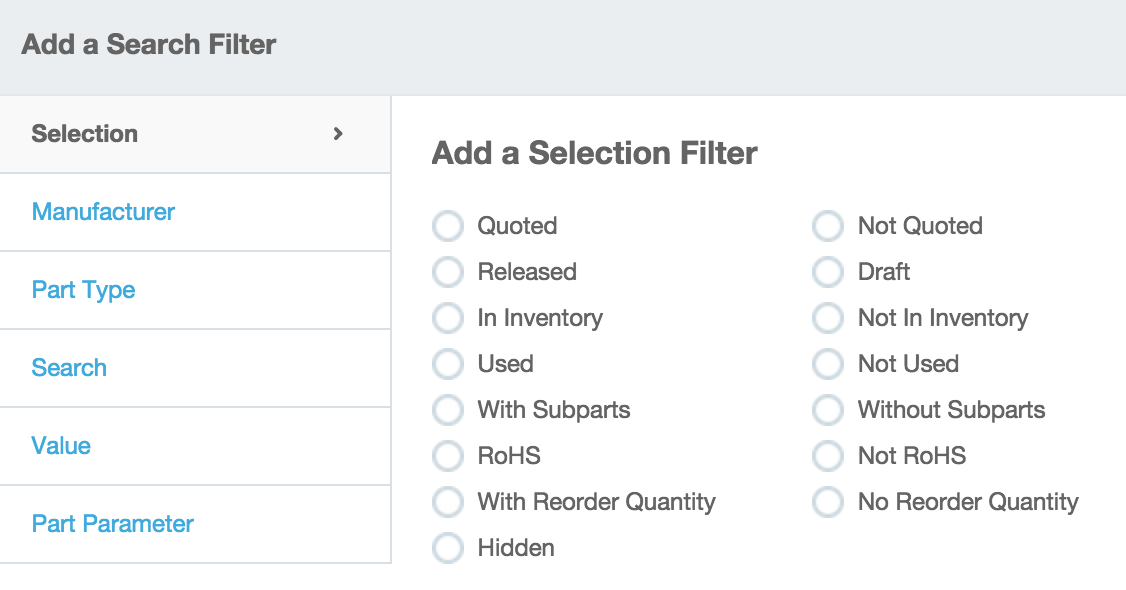

These filters remain active and the results may be summoned any time by clicking on the “Show Search Results” link at the right. Also note that this search is the only way to find hidden parts.
Below is some additional description of some of these filters:
- Used – An item is considered used if it is present on any other item’s BOM.
- Quoted – An item is quoted if there are any quotes (either entered manually or via ActiveQuote) associated with the item.
- With Demand – An item has demand if the item is either planned, allocated, or reserved on any active builds.
- On Order – An item is considered “on order” if it is present on any open (active) purchase and has not yet been received in full.